Part 2: A real review process
In part one you published a page through moderation, but you acted as author and reviewer. In a real organisation those are different people: an editor writes, and someone else signs the content off. In this part you will add a separate reviewer, route a new collection through them, and meet the features you would use day to day.
This part continues in the same testproj project from part one and takes
about twenty minutes.
Create a reviewer
Reviewers are usually managed as a group, so you can add or remove people without touching every workflow. A reviewer needs only to view collections and the requests inside them — crucially, the ability to approve comes from the role, not from Django permissions (more on that below).
In the admin, go to Authentication and Authorization → Groups and add a group called
Reviewers. In the permission filter, typemoderationand grant the group exactly these two permissions:djangocms_moderation | collection | Can view collectiondjangocms_moderation | moderation request tree node | Can view moderation request tree node
Save the group.
Go to Users → Add user and create a user called
reviewer. Tick Staff status so they can reach the admin, add them to theReviewersgroup, and save.
Note
That is the complete permission set for a reviewer. They cannot add, edit or delete collections; they can only open them and act on the requests they are responsible for. See Roles and permissions for the full picture of how moderation’s roles and Django permissions interact.
Give reviewers a role and workflow
A Role points moderation at who reviews a step. In part one the role pointed at a single user; this time it points at the whole group.
Go to django CMS Moderation → Roles → Add Role, name it
Content reviewers, select theReviewersgroup (leave User empty) and save.Go to django CMS Moderation → Workflows → Add Workflow, name it
Standard approval, tick Is default (replacing the quick workflow from part one), add one step assigned to theContent reviewersrole and save.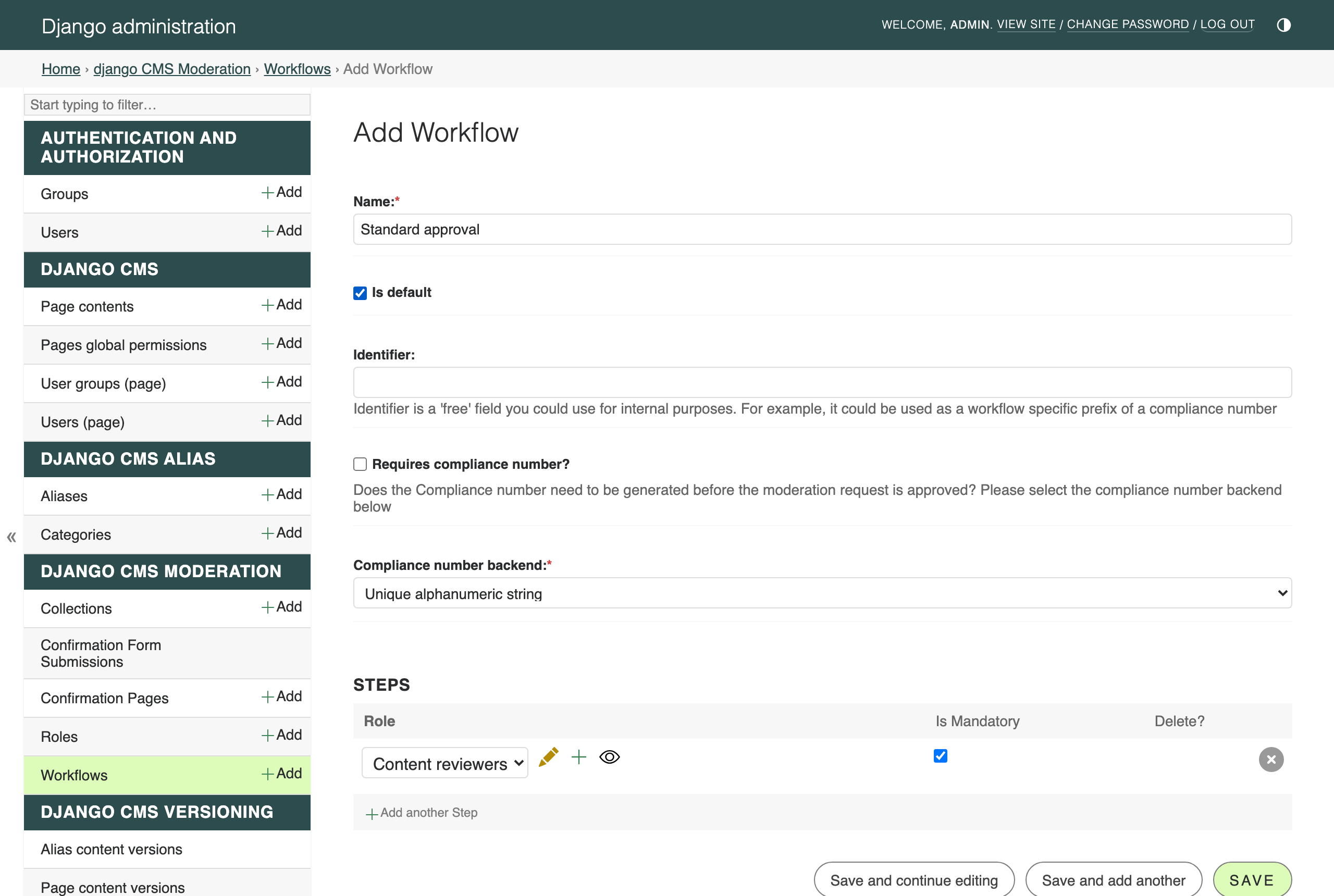
Organisations with more elaborate sign-off (legal, compliance, marketing …) add one step per approving party; the request then moves from step to step, notifying each role in turn. See Workflows and Steps.
Submit content for review
Set up a fresh collection just as you did in part one, this time using the new workflow:
Add a collection named
Summer campaignusing theStandard approvalworkflow.Create a page, and from its toolbar choose Submit for moderation and add it to the
Summer campaigncollection.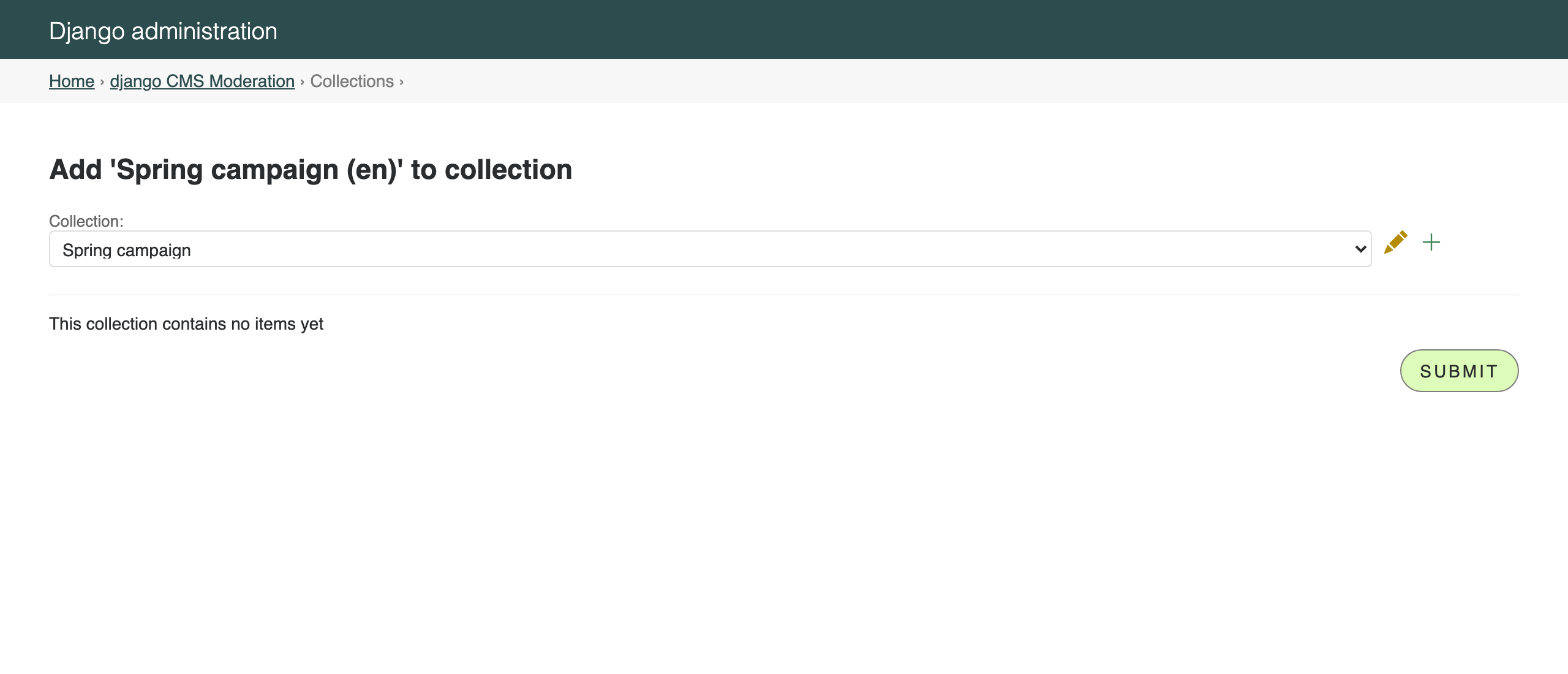
Note
When you add a page, any moderated draft content used by plugins on it (for example aliased content) is added to the collection too, so reviewers always see the complete picture.
Open the collection’s requests view (the requests icon in the actions column) and click Submit collection for review:
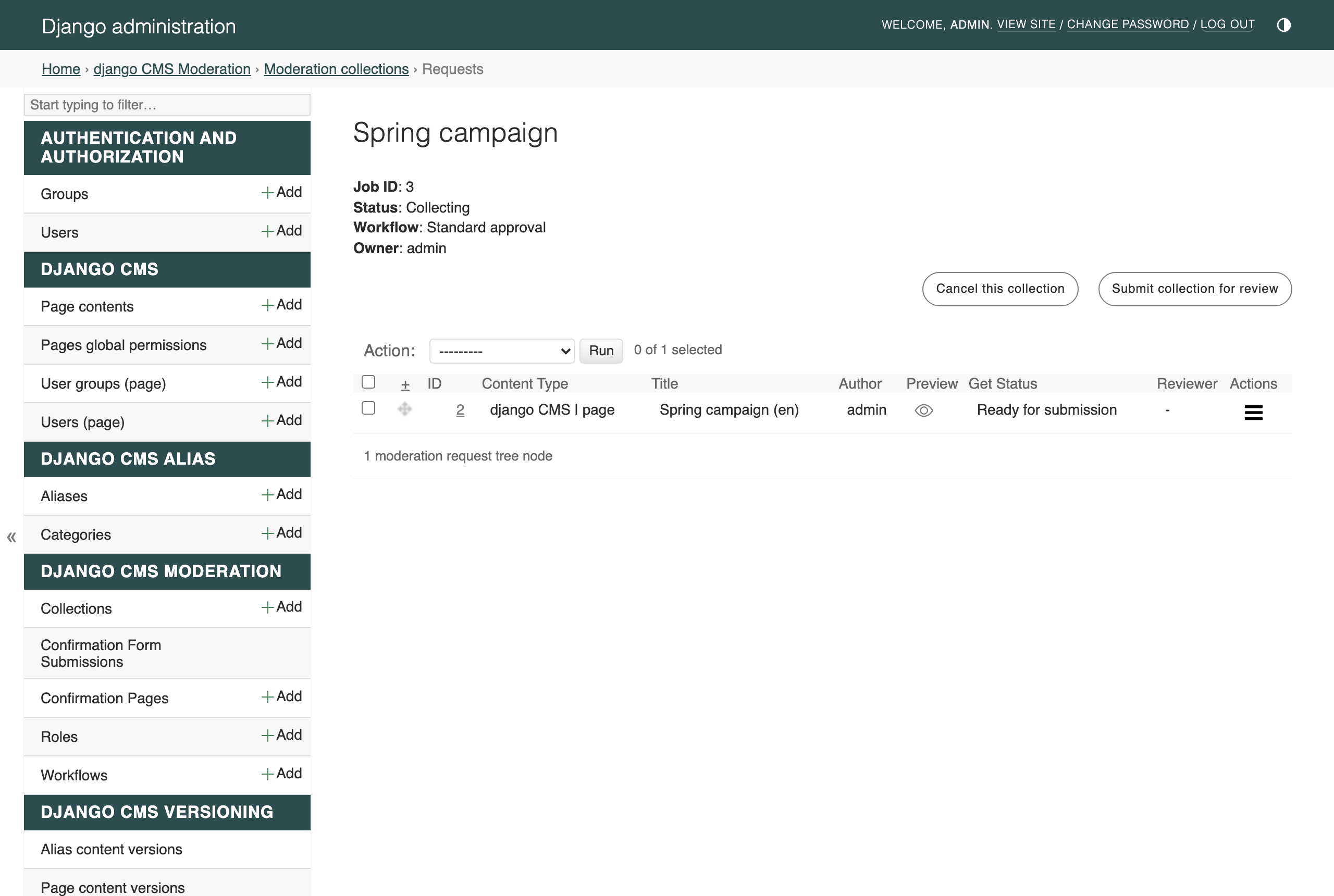
You are asked which review group the first step should notify — choose the reviewers and submit:
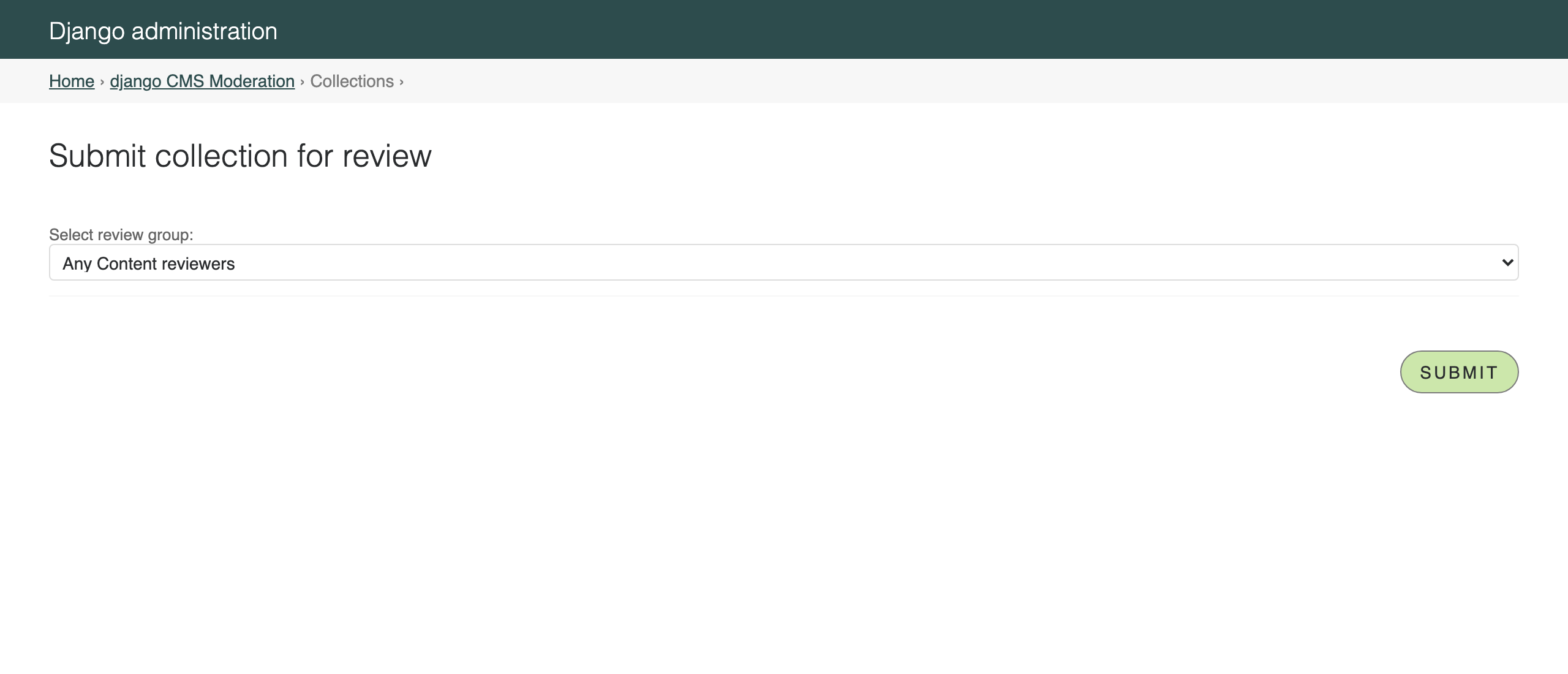
Two things happen: the collection’s status changes to In review — its drafts can no longer be added to or edited, they are review-locked — and the reviewers are notified by email (check the runserver console).
Review as a different user
Now switch hats. Log out (or use a private browser window) and log in as
reviewer.
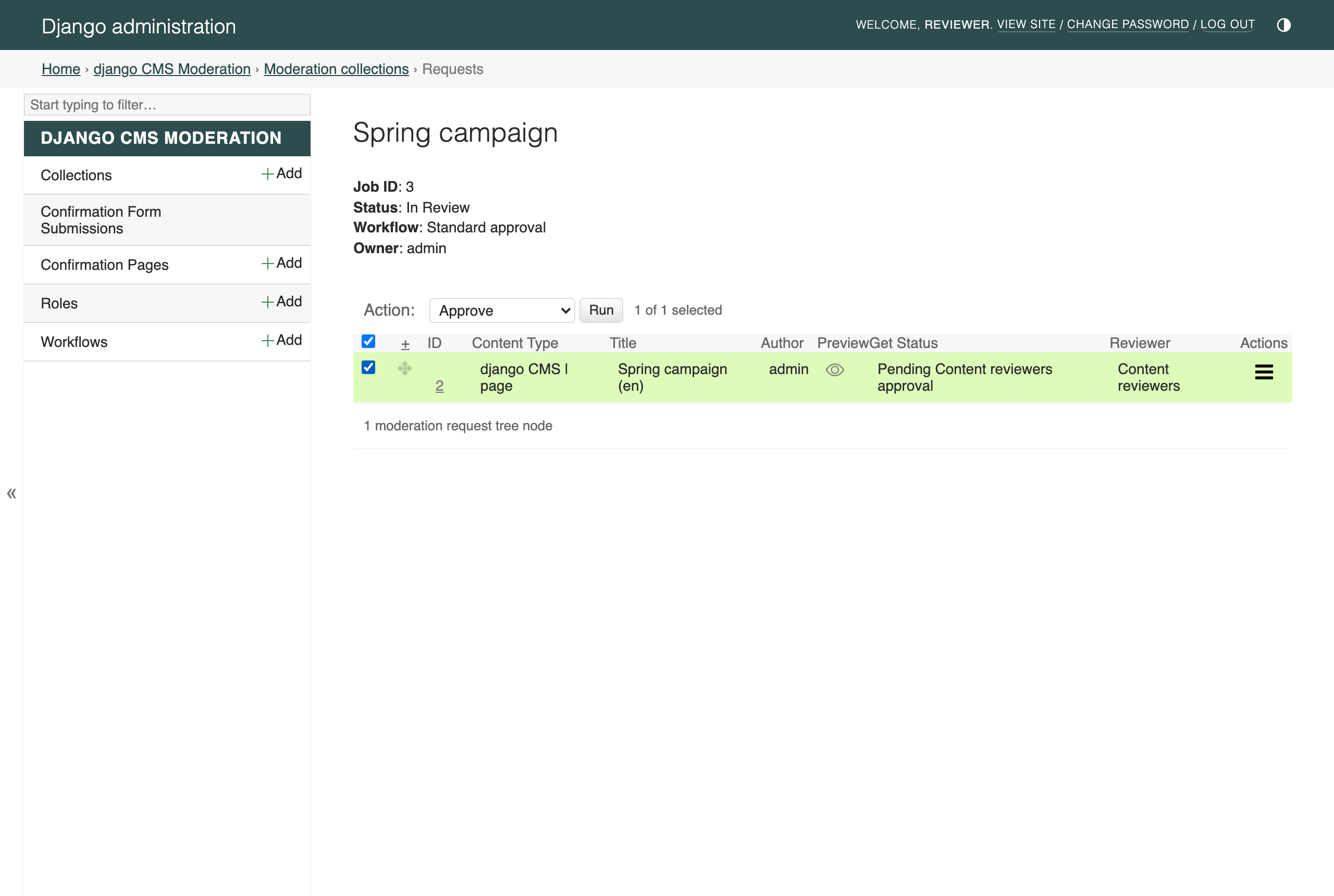
Open django CMS Moderation → Collections → Summer campaign requests. As a reviewer you see the pending request, Pending Content reviewers approval. Use the eye icon in the Preview column to inspect the content, then tick the request, choose Approve in the action dropdown and click Run:
A confirmation screen summarises what you are approving:
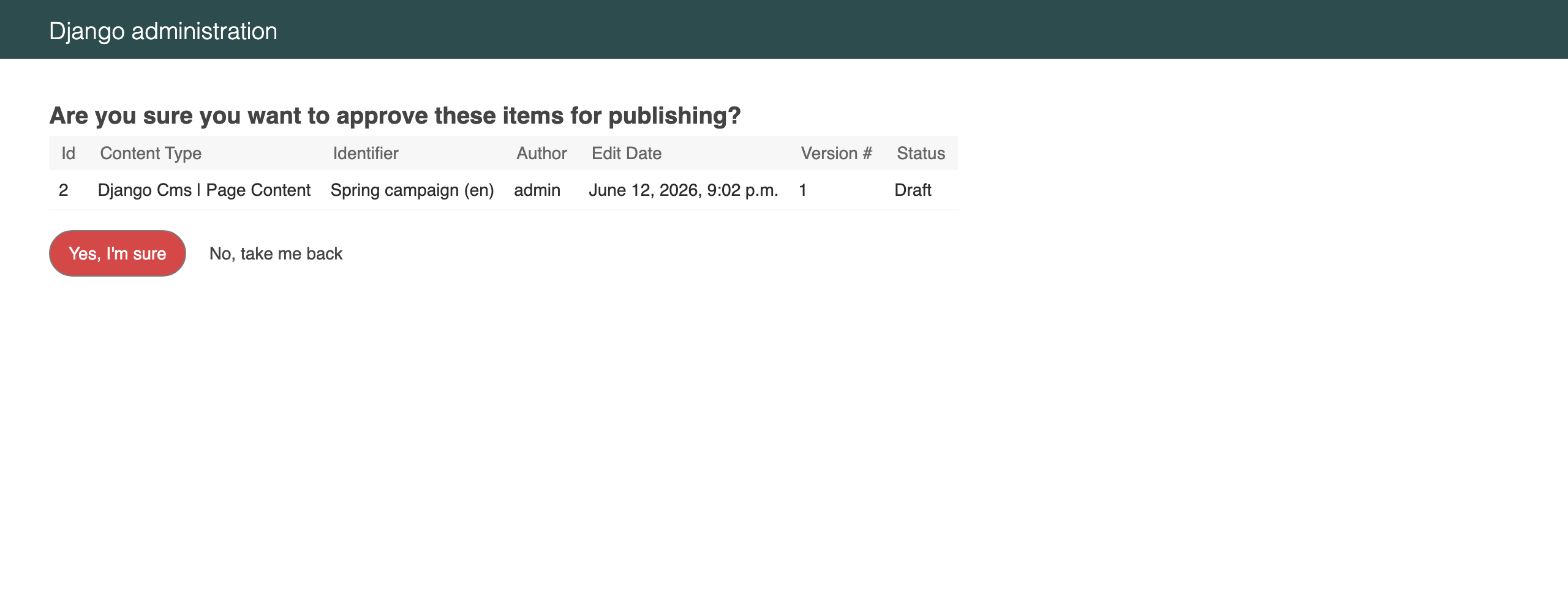
Confirm. The request becomes Ready for publishing and the collection author is notified by email. Had the content needed changes, you would have chosen Submit for rework instead, sending it back to the author with a comment.
Publish
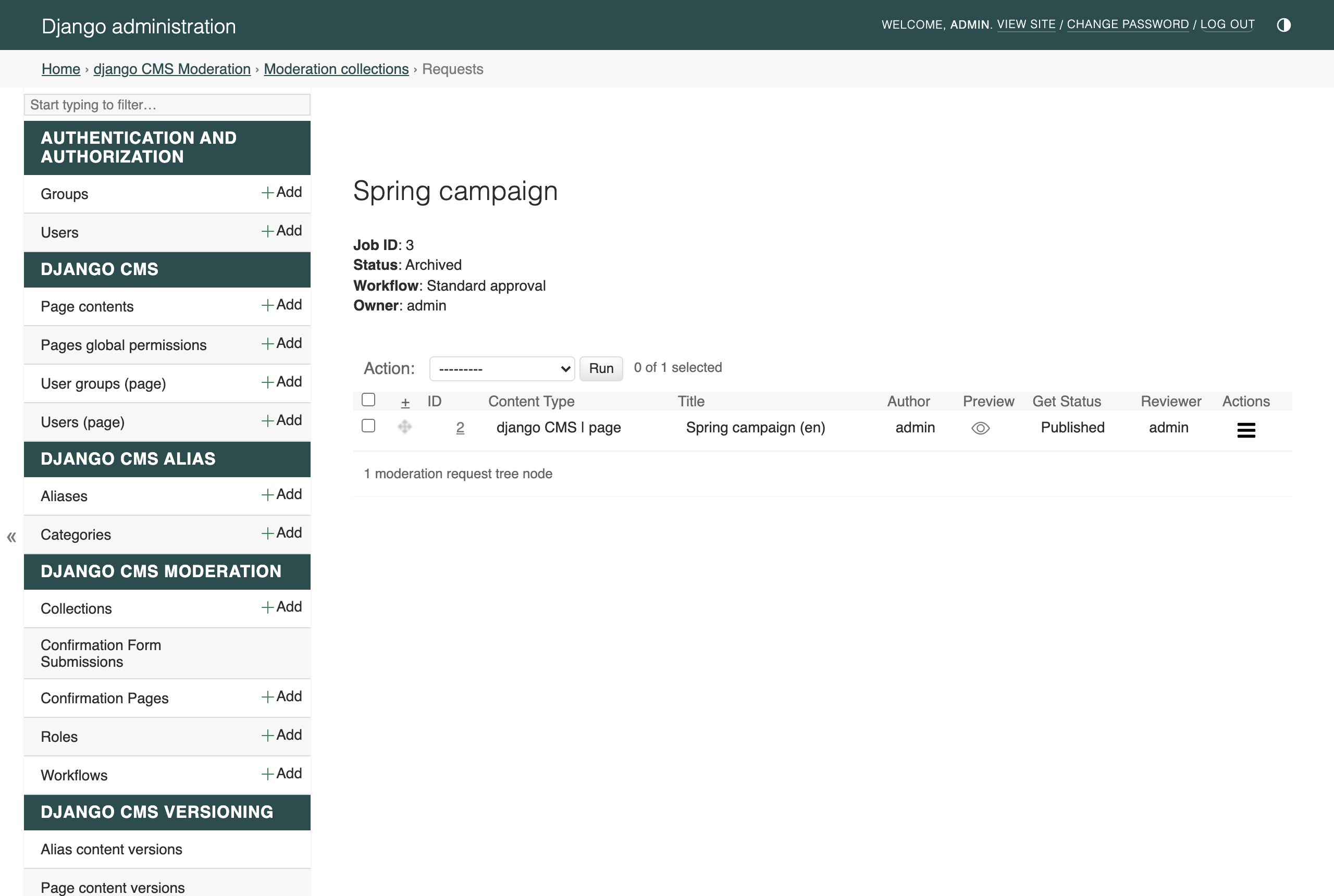
Switch back to your superuser (the author). Open the Summer campaign
requests view, select the approved request, choose Publish, click Run
and confirm. The page goes live, and because every request in the collection
has now been moderated, the collection archives itself:
What you have learned
Reviewers need only view permission on collections and requests; the power to approve comes from their Role, not from Django permissions.
Roles point at a user or a group; Workflows chain one or more steps, each assigned to a role; the default workflow is used for new collections.
Submitting a collection for review locks its content and notifies the reviewers of the first step.
Reviewers approve or send back for rework; the author publishes approved content; fully moderated collections archive themselves.